

To merge PDFs in the right order, check each source file, arrange the files from top to bottom in Pexlii, then download and open the result. Pexlii keeps the pages inside each source PDF in their existing order, so fix a misplaced or sideways page before you merge.
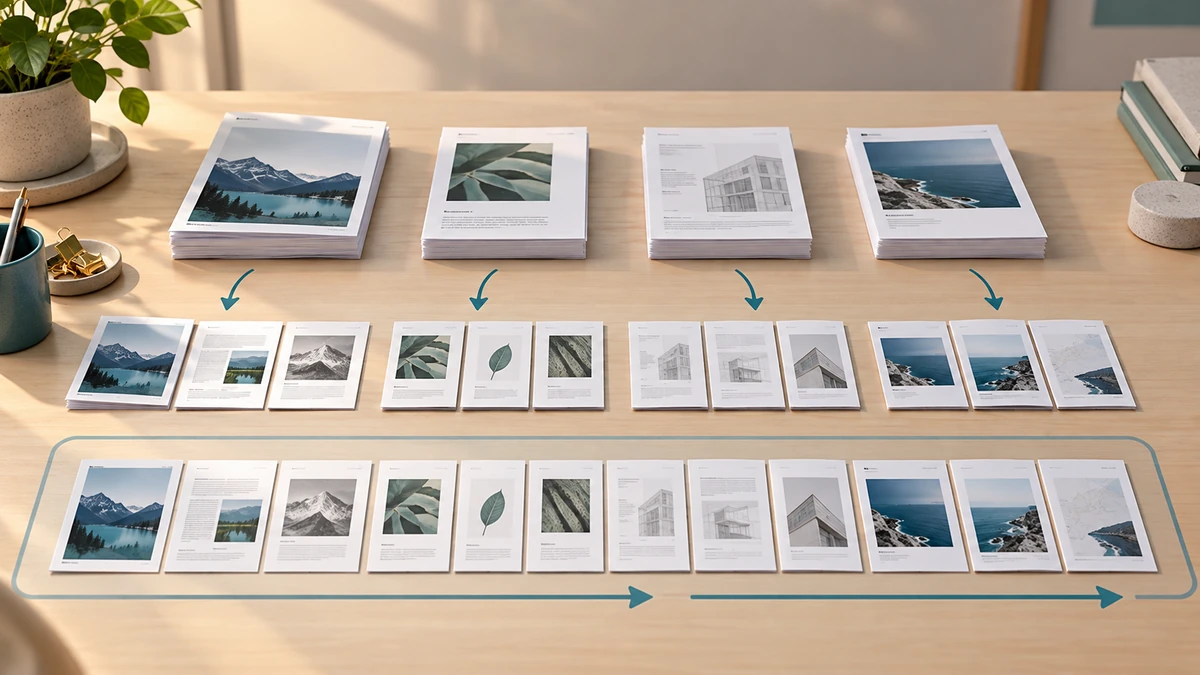
Imagine sending a two-page application, a one-page ID copy, and three pages of receipts. Put those three files in that sequence and the result should have six pages. The quick page-count check catches a missing or duplicated source before you send it.
Check the source PDFs first
Open every PDF once. Check that it is the right version, count its pages, and look for blank scans, upside-down pages, or an attachment that belongs elsewhere. Make a short order list, such as application → ID → receipts. Numbered filenames can help you recognize the files, but the order you set in the tool is what matters.
Pexlii’s merger moves whole files, not individual pages. If page 3 of a source belongs before page 2, correct that source in a page-organizing tool first. Do the same for pages that need rotation. A password-protected or damaged PDF may fail to load; obtain a usable copy from its owner rather than assuming the merger can repair it.
Put the files in order in Pexlii
Open Merge PDF Files and select or drop at least two PDFs. The selected-file list shows each filename and its page count. Use the up and down buttons to place files in the exact reading order; the tool combines them from the top of the list to the bottom. Use Add More if you forgot a file, or remove an incorrect one before merging.
For the example above, the list should read application (2 pages), ID (1 page), receipts (3 pages). Check the total shown by the tool: 2 + 1 + 3 = 6 pages. Select Merge PDFs, wait for the result, and download it. Pexlii creates a filename for the download; rename your local copy to something clear, such as application-with-supporting-documents.pdf.
- Arrange whole files with the up and down buttons.
- Check the total page count before you select Merge PDFs.
- Fix individual page order or rotation in the source PDF first.
Open the downloaded PDF before sharing
Open the downloaded PDF in a viewer. Confirm the page count, then inspect the first page, the last page, and every point where one source file ends and the next begins. Check that scanned text is upright and readable. If the order is wrong, return to the selected-file list or fix the source PDF, then merge again.
Do not treat a successful download as proof that a complex PDF survived unchanged. If your sources contain form fields, signatures, bookmarks, or links, test the features you need in the merged copy. If the file is too large for an upload, compress a copy after the order is final and inspect it again. Adobe’s more advanced combine workflow also supports reviewing and rearranging individual pages; those are different controls from Pexlii’s file-order buttons.
Adobe Acrobat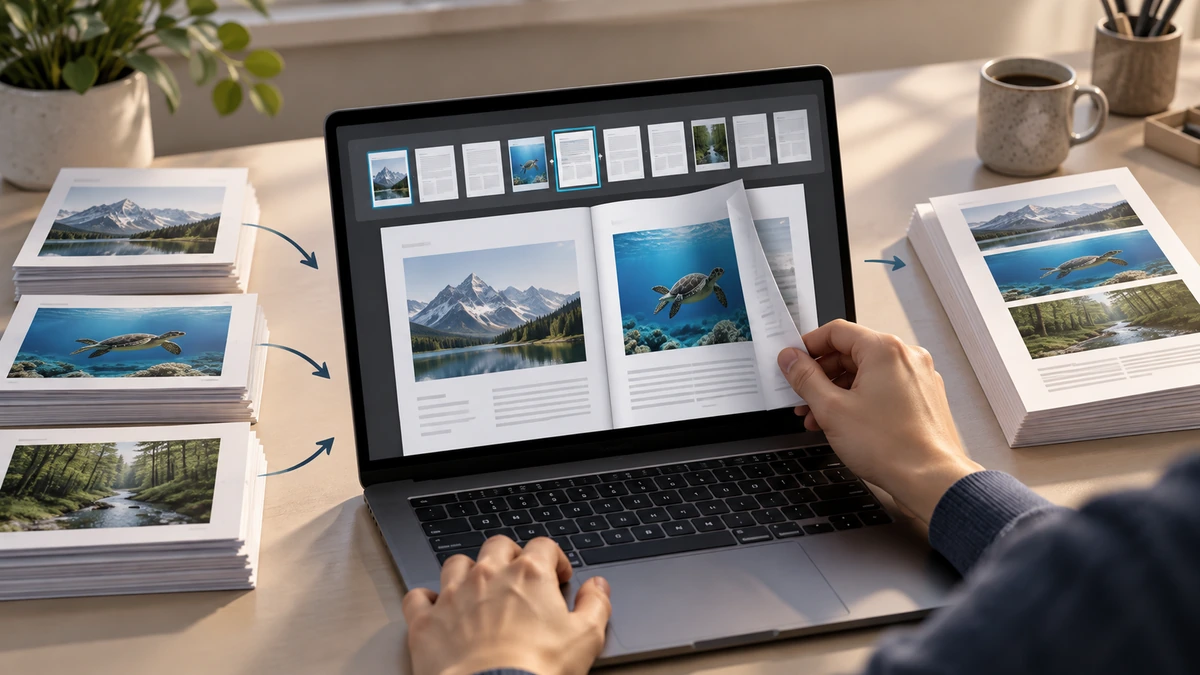
Key takeaways
- Correct page-level problems in the source PDFs before merging.
- Pexlii merges whole files in the top-to-bottom order shown.
- Open the download and check its page count and section boundaries.
Sources
References for factual claims and further reading.
- 01
Adobe Acrobat
Combine files into one PDF
Educational information only. Follow the requirements of the receiving organization, product label, applicable standard, or qualified professional for your situation.