

In this guide
To save selected pages from a PDF, open Pexlii’s Split PDF Pages tool, select your file, and choose Custom Page Range. Enter a range such as 3-5, check the selected page numbers, then extract and download the new PDF. Choose Extract All Pages only when you want a separate file for every page.
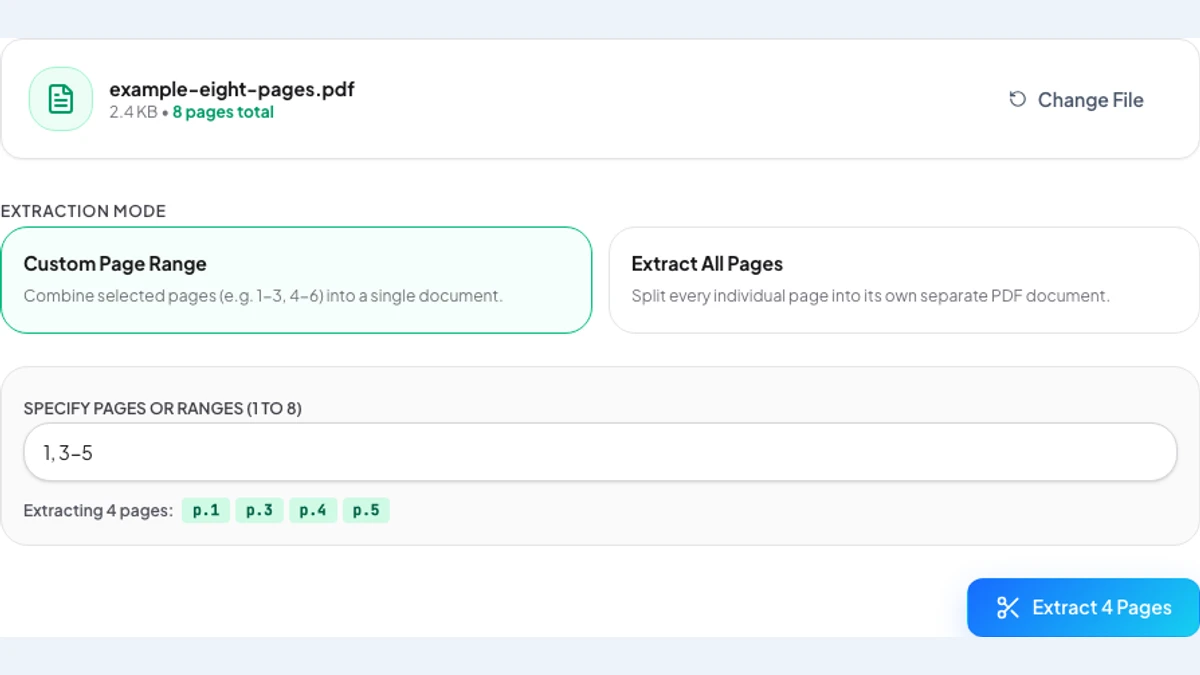
For example, suppose you need the cover and a three-page section from an eight-page document. Enter 1, 3-5. The result should be one four-page PDF containing original pages 1, 3, 4, and 5, in that order. This is the sample used in the screenshots below.
Find the pages you actually need
Open the original in a PDF viewer first. Note the page position counted from the start of the file, beginning at 1. A cover or contents page can make that position different from the number printed in a footer. If the page you want says “1” but is the third page in the file, enter 3 in Pexlii.
Keep the original. Include a title, reference number, or continuation page if the extract would otherwise be confusing. Before sending only part of a document, check that the recipient accepts selected pages rather than the complete file.
- One page: enter 4.
- A consecutive range: enter 3-5 to include both endpoints.
- Separate selections in one file: enter 1, 3-5.
Select a range and check the preview
Select your PDF, then keep Custom Page Range selected. Replace the suggested range with your own numbers. For the eight-page example, type 1, 3-5. The preview should say “Extracting 4 pages” and list p.1, p.3, p.4, and p.5. If it lists anything else, correct the input before continuing.
Pexlii combines custom selections into one PDF in ascending source-page order. Entering 5, 1 does not move page 5 ahead of page 1, and repeating a page number does not create an extra copy. To create separate chapter files, extract and download one chapter range at a time.
Choose Extract 4 Pages for this example. The number on the button changes with your selection. The tool processes the PDF in your browser; the PDF contents are not uploaded by this tool.
Need every page as a separate file?
Choose Extract All Pages instead of Custom Page Range. For an eight-page source, Pexlii creates eight one-page PDFs. Each result has its own Download button; there is no bulk ZIP download, so save the files you need individually.
This is different from splitting a PDF at chapter boundaries. Adobe’s web workflow uses dividers between page thumbnails to make groups of pages. Those divider controls belong to Adobe; in Pexlii, use a custom range for each group you want to save.
Adobe AcrobatDownload and inspect the new PDF
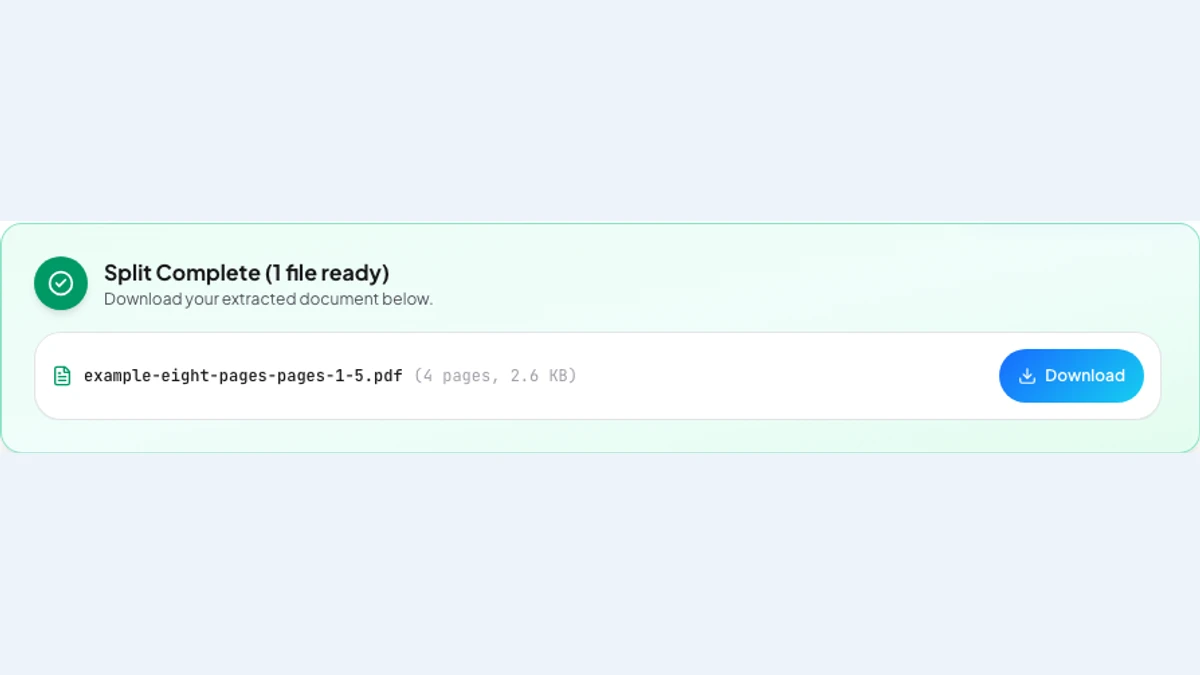
When Split Complete appears, click Download beside the result. Open the saved file rather than relying only on the success message. In the worked example, it should have four pages: the original cover followed by original pages 3, 4, and 5.
Check the first and last page, small text, tables, and any signature you need. Keep a table’s heading with its rows and a signature with the text it belongs to. Rename the download by subject so the recipient can identify it without opening it.
- The output page count matches your intended selection.
- The first and last page are the ones you meant to send.
- The extract includes enough context to make sense on its own.
- The saved copy opens and its important details remain readable.
If the selection or file will not work
If a page exceeds the document’s total, use the page count shown beside the selected filename and correct the range. Use ordinary hyphens for ranges, commas between selections, and numbers starting at 1. A range such as 5-3 is backwards; use 3-5.
For a password-protected PDF, use a copy you are authorized to open and remove its encryption before trying again. If a large file fails, close other heavy browser tabs and retry with the original. Splitting selects pages; it does not guarantee that the new file will meet a destination’s size limit. Check the downloaded size separately.
Key takeaways
- Use file-page positions, not the numbers printed in the document.
- Custom Page Range makes one PDF; Extract All Pages makes separate one-page PDFs.
- Check the preview, then open and inspect the downloaded file.
Sources
References for factual claims and further reading.
- 01
Adobe Acrobat
Split PDFs into multiple files
Educational information only. Follow the requirements of the receiving organization, product label, applicable standard, or qualified professional for your situation.