

In this guide
Page numbers become especially valuable after several files have been merged. They let reviewers cite a location and help printed pages return to the correct order.
Adobe’s numbering workflow includes both position and page-range controls, plus formatting options. Those choices should follow the document’s structure rather than being applied automatically to every page.
Adobe AcrobatDecide what “page 1” means
A cover sheet may be physical page 1 but intentionally unnumbered. A report can use roman numerals for preliminary pages and begin Arabic numbering at the first chapter. A submission portal may instead expect simple consecutive numbers from the first PDF page.
Write the rule before applying it: for example, “skip the cover and print 1 on PDF page 2.” This prevents a technically correct sequence from conflicting with the table of contents or printed references.
Place numbers where they remain readable
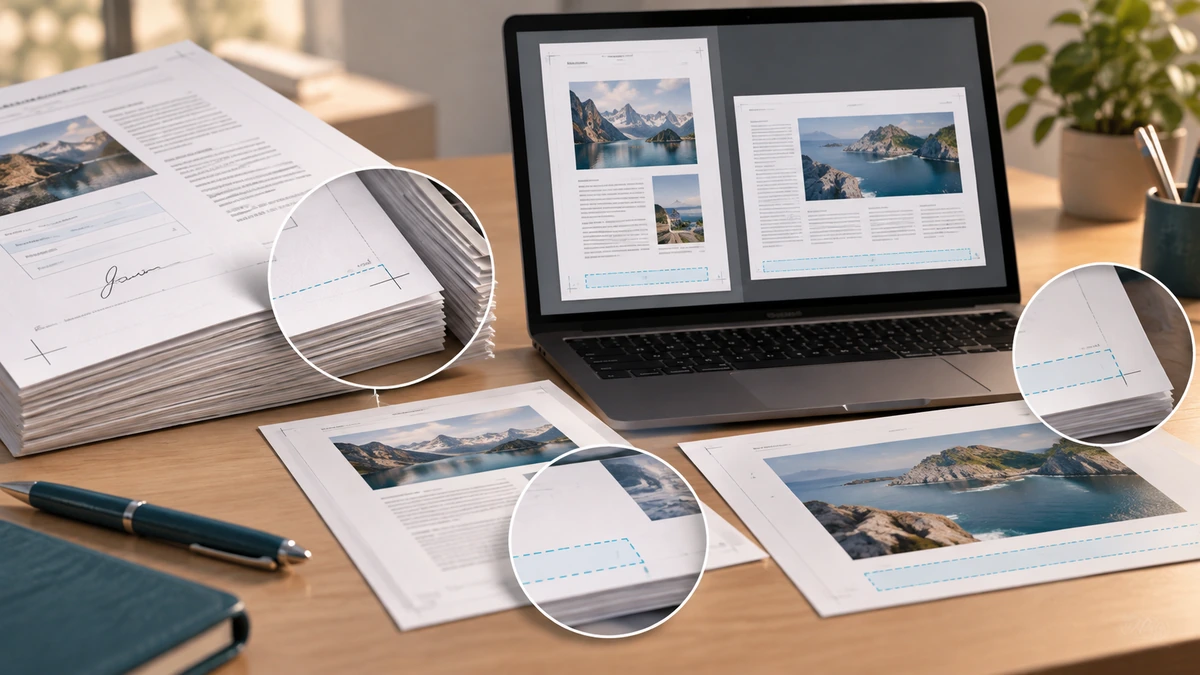
Use a consistent header or footer position with enough margin from the edge. Avoid covering signatures, existing footers, crop marks, or form fields. On mixed portrait and landscape documents, inspect both orientations.
Keep the style quiet: a simple number with a readable size is usually better than decorative text. If the PDF already contains printed page numbers, adding a second sequence can help with a merged exhibit packet—but label it clearly, such as “PDF 12,” to distinguish it.
- Choose the starting page and starting number separately.
- Check existing headers and footers first.
- Preview portrait and landscape pages.
Test references after numbering
Open the table of contents or any sentence that cites a page and confirm the reference still makes sense. If pages were inserted or removed after numbering, regenerate the sequence rather than patching individual numbers.
Adobe notes that number tools can target a selected page range and position. Use that preview to examine the first numbered page, the last numbered page, and at least one page in the middle before saving.
Adobe Acrobat
Key takeaways
- Define the first numbered page before choosing a style.
- Avoid collisions with existing content.
- Renumber after structural changes instead of manually correcting individual pages.
Sources
References for factual claims and further reading.
- 01
Adobe Acrobat
Add page numbers to PDFs
Educational information only. Follow the requirements of the receiving organization, product label, applicable standard, or qualified professional for your situation.