
In this guide
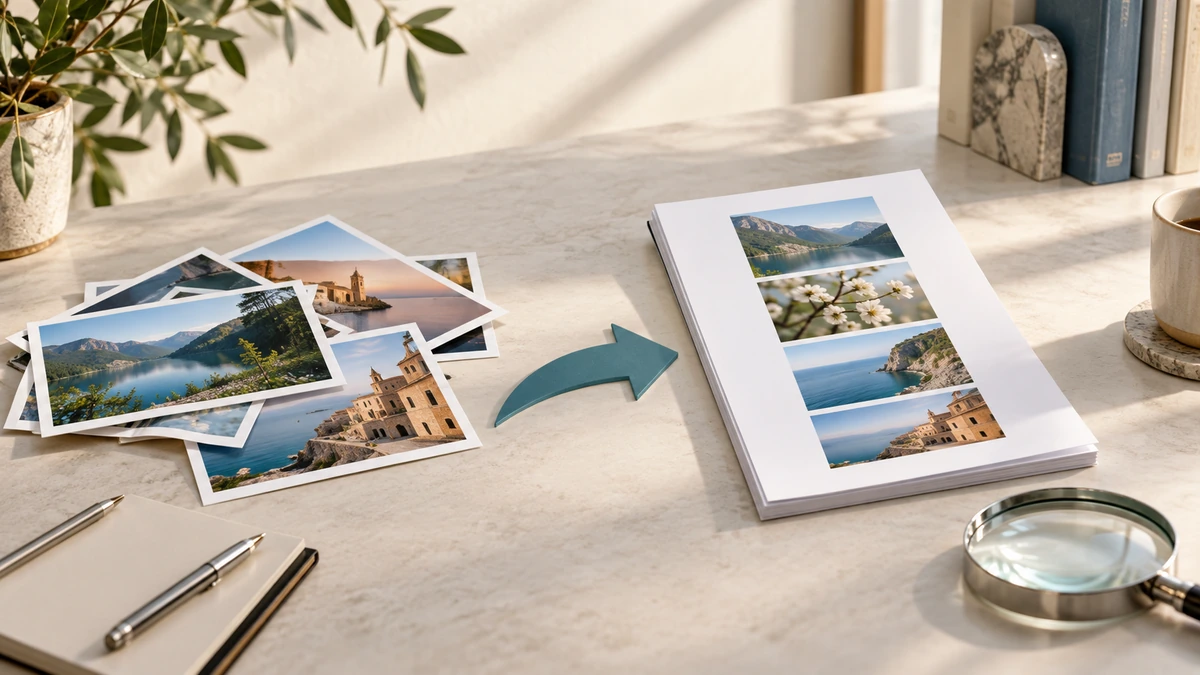
A stack of phone photos is difficult to print, review, or upload. Combining those images into one PDF creates a stable page sequence, but the result is only useful if the photos are legible and consistently framed.
Adobe’s scan guidance treats resolution, color mode, deskewing, background removal, and text sharpening as separate choices because each affects file size and readability.
Adobe AcrobatPrepare the images before conversion
Retake any blurred, shadowed, or clipped page. A converter cannot restore text that the camera never captured. Photograph each sheet square-on, include all four corners, and use even light without glare.
Crop away the desk, rotate every image upright, and put the files in order. Numeric names such as page-01.jpg through page-12.jpg reduce the chance that page 10 appears between pages 1 and 2.
Match the page to the purpose
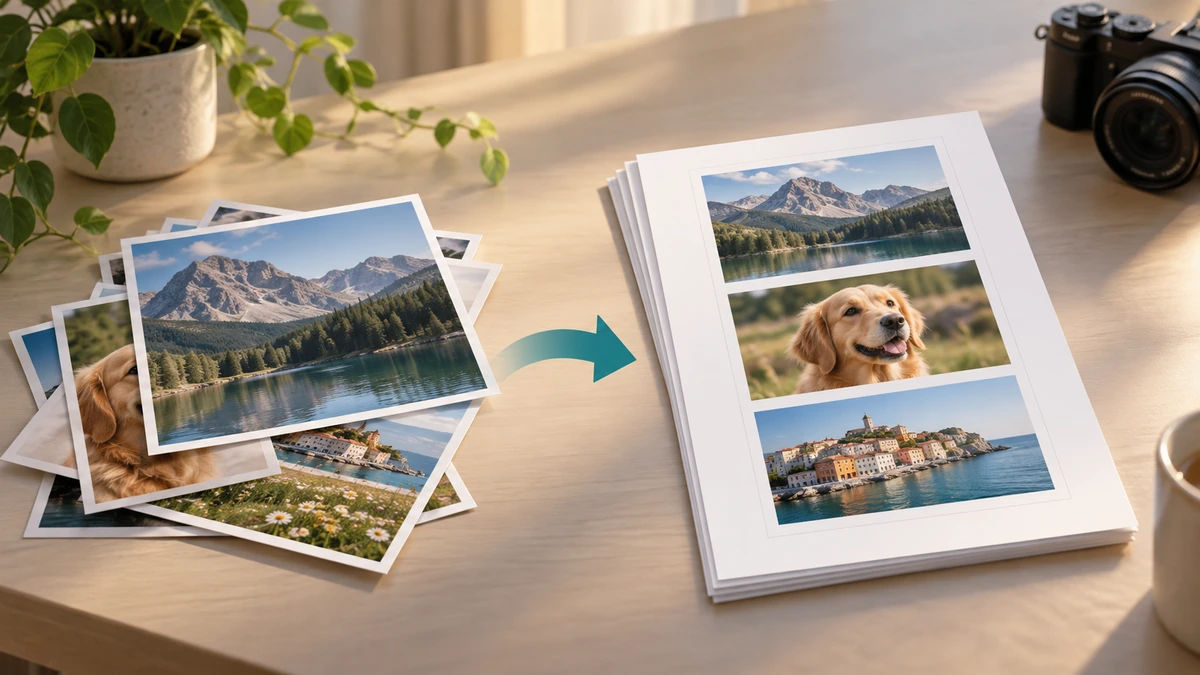
For ordinary reading and upload, a page fitted within A4 or Letter with a modest white margin is usually easier to handle than a borderless page that inherits each camera image’s aspect ratio. Avoid stretching: fit the image proportionally inside the page.
Color can help with stamps or annotations, but grayscale often reduces size for monochrome documents. Adobe recommends 300 dpi for grayscale or color document scans in its optimization guidance, while noting that the final setting should balance file size and quality.
Adobe Acrobat- Use one orientation unless the source genuinely changes orientation.
- Fit proportionally; never stretch an image to fill the page.
- Keep color only where it carries information.
Inspect the PDF as if you were the recipient
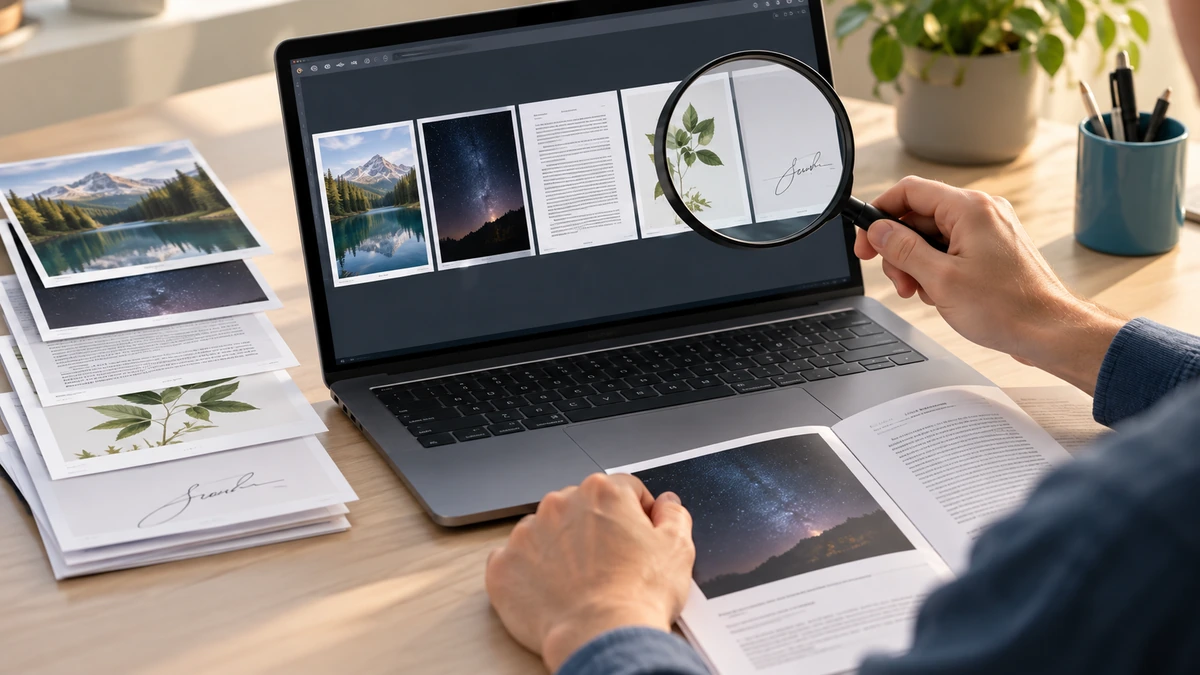
Read the smallest text on the darkest and lightest pages. Check that no edge was clipped, that signatures remain visible, and that page order matches the original stack. Count the source images and final PDF pages.
If the file is too large, compress the finished PDF once and compare it with the uncompressed version. Keep the original images until the submission has been accepted.
Key takeaways
- Fix blur, glare, crop, and rotation before building the PDF.
- Use proportional fitting and consistent page sizes.
- Retain the source photos until the PDF is accepted.
Sources
References for factual claims and further reading.
- 01
Adobe Acrobat
Scanned PDF settings
Educational information only. Follow the requirements of the receiving organization, product label, applicable standard, or qualified professional for your situation.