
In this guide
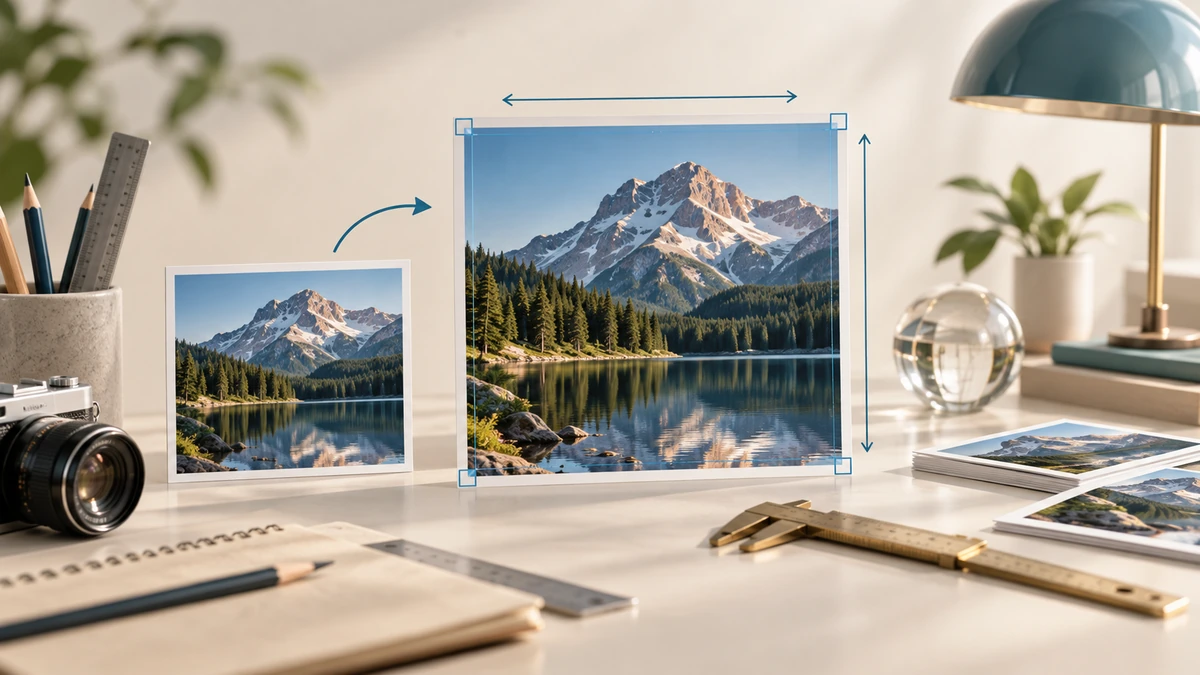
Stretching happens when width and height are changed independently. Circles become ovals, faces become wider or thinner, and text proportions look wrong. The cure is to preserve the source aspect ratio unless distortion is an explicit effect.
The Canvas API’s image-drawing controls distinguish source rectangles from destination rectangles and can scale an image into a target area. MDN also cautions that scaling can create blur or grain, particularly for text-heavy images.
MDN Web DocsCalculate one dimension from the other
Aspect ratio is width divided by height. For a 1600 × 900 image, the ratio is 16:9. If the new width is 800, a proportional height is 450. A locked-ratio control performs that calculation automatically.
If a destination demands both a fixed width and fixed height with a different ratio, you have three honest choices: fit with empty space, crop the excess, or distort. Cropping is normally preferable to distortion when the subject can lose some edge content.
Avoid unnecessary upscaling
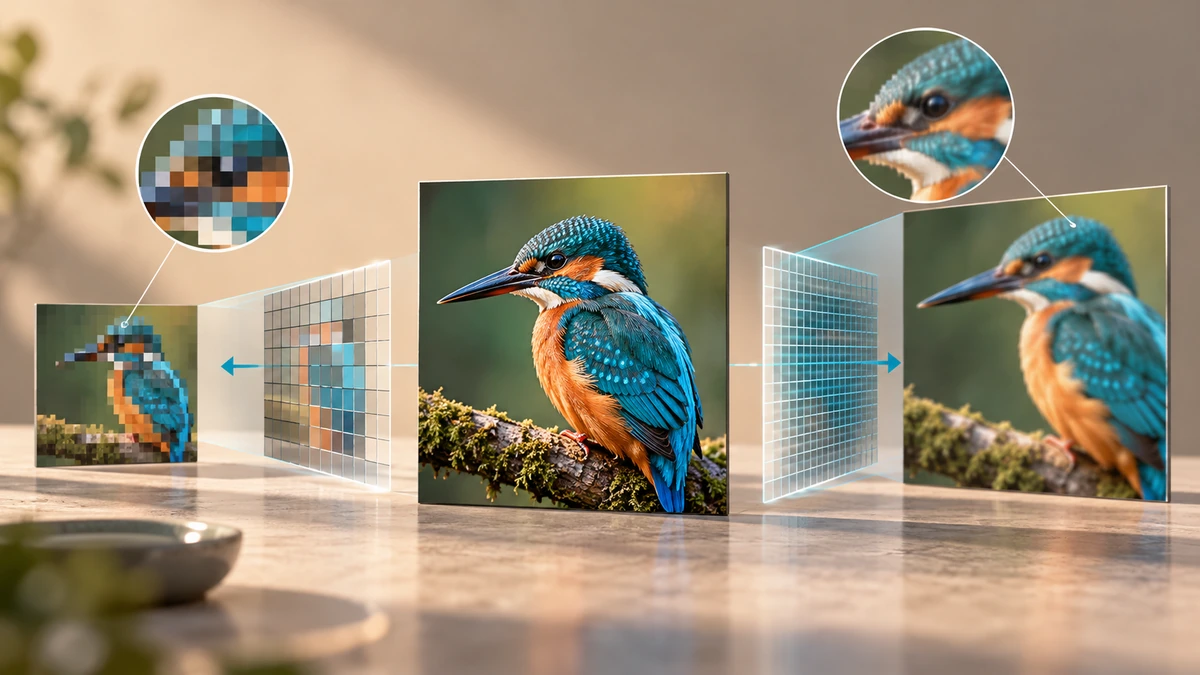
Downscaling combines source information into fewer pixels. Upscaling invents additional pixels by interpolation; it can smooth jagged edges but cannot recover real detail that was not present in the original.
For logos and icons, use the original vector file when available. MDN identifies SVG as a vector format suited to icons and diagrams that must remain accurate at different sizes.
MDN Web Docs- Lock aspect ratio for normal resizing.
- Crop to fill a mismatched frame.
- Use vector originals for graphics that must scale repeatedly.
Choose output dimensions from the destination
Use the platform’s requested pixel dimensions, not a vague “high resolution” setting. A print workflow may also specify physical dimensions and pixel density, while a web upload usually cares about pixel dimensions and file size.
After resizing, inspect small text and high-contrast edges at 100% zoom. Save the resized image as a new file so the full-resolution source remains available for future sizes.

Key takeaways
- Lock aspect ratio to prevent warping.
- Crop or add space when the target ratio differs.
- Do not expect upscaling to recreate missing detail.
Sources
References for factual claims and further reading.
- 01
MDN Web Docs
Using images with the Canvas API - 02
MDN Web Docs
Image file type and format guide
Educational information only. Follow the requirements of the receiving organization, product label, applicable standard, or qualified professional for your situation.