
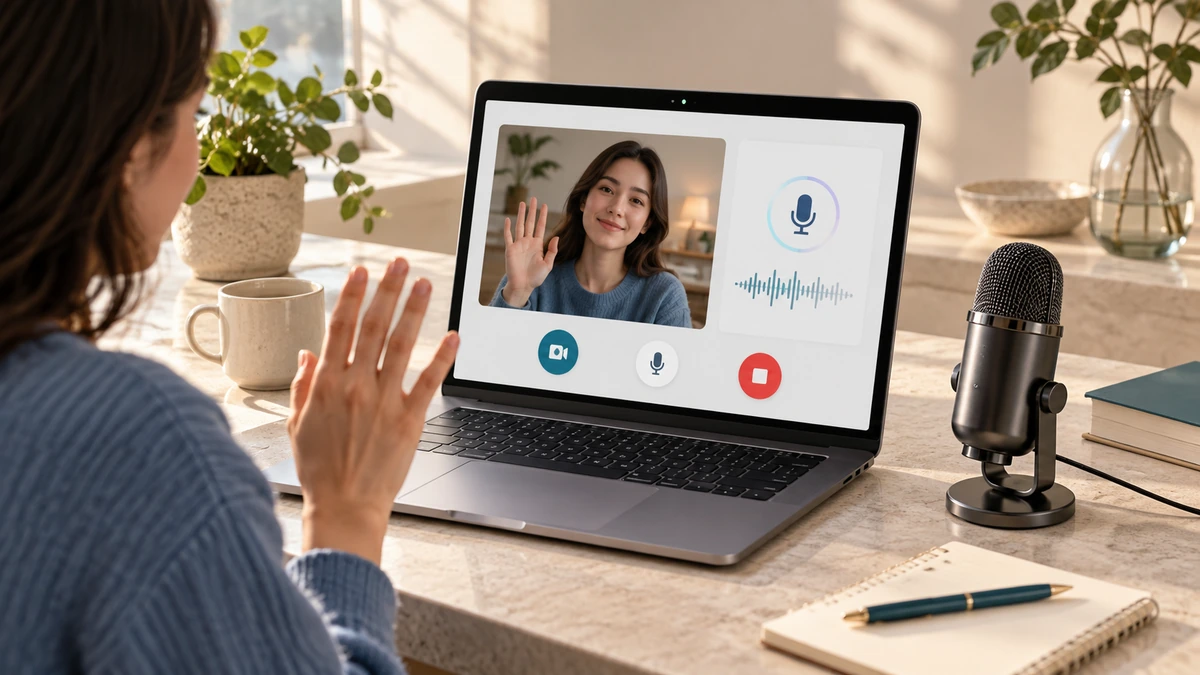
In this guide
A successful device test confirms more than “the camera exists.” It checks that the browser has permission, the intended input is selected, the preview is usable, and microphone levels respond without constant clipping.
Browsers use MediaDevices.getUserMedia() to request camera or microphone streams. MDN notes that the method requires a secure context and prompts the user for permission.
MDN Web DocsGrant access deliberately
Open the tester over HTTPS and approve only the device types needed. The browser should show an indicator while a camera or microphone is active. If you previously blocked access, use the site-permission control near the address bar or browser settings to review the decision.
Close other apps that may have exclusive control of the device, then reload the test. A virtual camera, dock, headset, or monitor microphone may appear as a separate input.
Check picture and sound separately
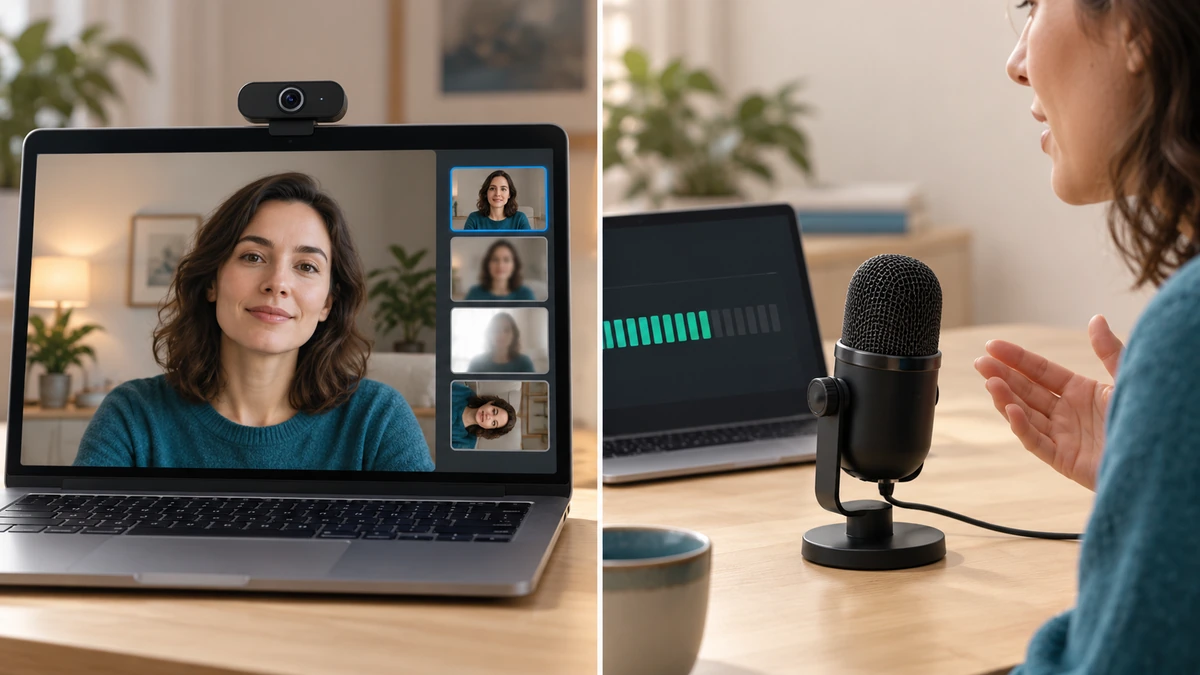
For video, verify framing, focus, lighting, orientation, and whether the selected camera is the one you intend to use. For audio, speak at normal distance and watch the level meter; it should respond clearly without remaining pinned at the maximum.
The getUserMedia API can request audio and video together or separately and can express preferences such as camera resolution. The browser may choose a supported setting close to the request.
MDN Web Docs- Camera preview is stable and correctly framed.
- Microphone meter moves with speech and falls near silence.
- Headset or external device is selected intentionally.
- Mute controls and hardware privacy shutters are open only when needed.
Stop the stream when finished
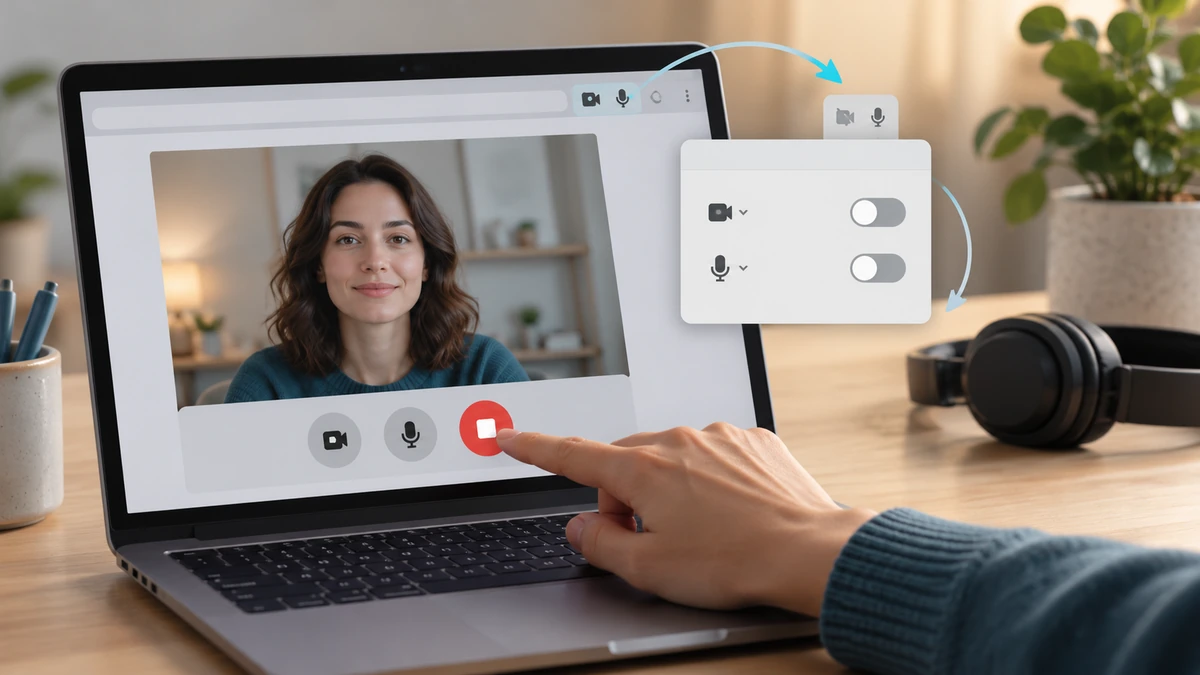
End the test and confirm the browser’s active-device indicator turns off. Permission can remain granted even after a stream stops, so revoke the site permission afterward if you do not want the browser to remember it.
A browser test does not guarantee a conferencing app will choose the same device. Repeat the device-selection check inside the actual meeting application before an important call.
Key takeaways
- Camera and microphone access requires browser permission.
- Confirm the selected device, not merely that some device works.
- Stop the stream and review remembered permissions after testing.
Sources
References for factual claims and further reading.
- 01
MDN Web Docs
MediaDevices.getUserMedia()
Educational information only. Follow the requirements of the receiving organization, product label, applicable standard, or qualified professional for your situation.